Sounds Like
The drawer taps the ear when the sketch represents something that sounds like the target word or one of its syllables.
 Follow the build
Game Guide
A closer look at hosting, joining, drawing, guessing, and the tools that keep every round moving.
01 · Getting started
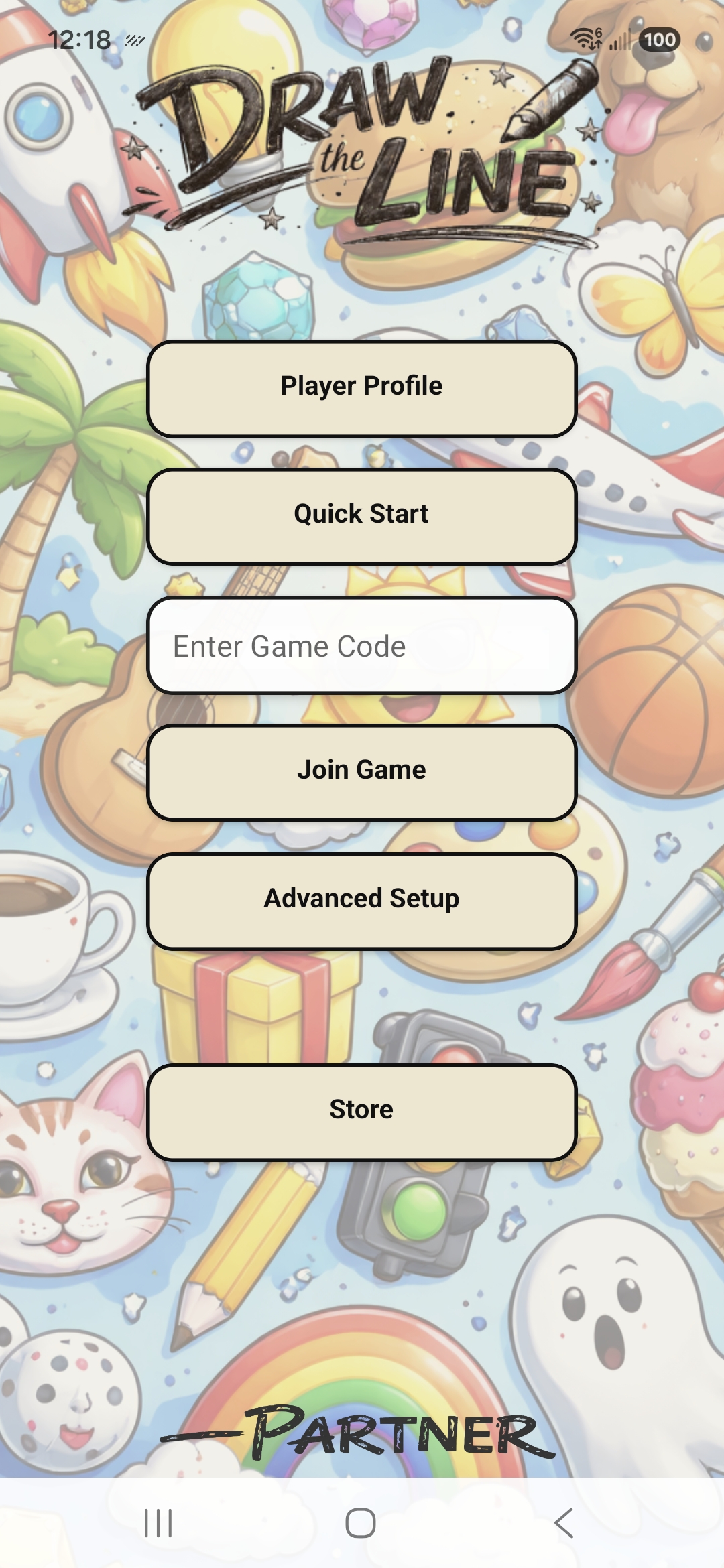
Everything begins on the main menu. Create your identity, start a room, or join a game that someone else is hosting. Hosts can open the dedicated Game Setup guide when they want every configuration choice explained.
 12345
12345Choose the display name and language you will use while playing. Your language belongs to you—not to the room.
*Required before play. Your saved profile settings remain on your device. While you are participating, the display name and preferred language needed to operate the game are transmitted through the live room. V1 does not create a permanent player account or player history.
Create a game using straightforward defaults and get everyone into the room with minimal setup.
Enter the six-character code supplied by the host, then tap Join Game to enter their room.
Build the game you want by choosing its mode, teams, timing, tools, word libraries, drawing order, and win condition.
This will be the home for optional word packs, play modes, and other additions as they become available.
02 · The play screen
The drawer sees the target word and draws directly on the easel. Guessers see the same drawing as it develops and submit as many guesses as time allows.
03 · Player tools
Tools help teams communicate without drawing the answer for them. The host decides which optional tools are available.
The drawer taps the ear when the sketch represents something that sounds like the target word or one of its syllables.
Reveal the number of syllables—or spoken units—without revealing any part of the answer.
Add 20 seconds when a promising drawing needs a little longer. Uses are limited, but unused opportunities can accumulate.
The drawer can highlight a teammate’s guess, pinning it beneath that player’s input field to show that they are getting close.
A captain can challenge a failed turn by selecting a close guess. Eligible players vote, and only a clear majority overturns the result.
04 · Finishing a game
Final Standings show the result, while team and player pages preserve the details behind it. Review the statistics, return to the main menu, or let the host prepare another game.
Points, solve time, fastest solves, and tie-breakers follow the win condition chosen by the host.
Open the available statistics after the game without slowing down the people who are ready to move on.
A brief grace period protects players from momentary signal loss, while captains can remove someone who cannot reconnect.